Access Student Accounts
Single Sign-on (SSO)
- CANVAS (also check out the iOS/Android app – Canvas Student)
- Access course syllabus, assignment schedule, and Zoom component
- Submit assignments, participate in discussions, take quizzes and exams
- Student OASIS (Campus Management System)
- Modify and view class schedule, pay your current tuition balance
- Check and accept your Financial Aid
- Online Databases (Databases used for research purposes)
To complete these steps, you will need your Raider User ID along with personal details that were recorded on your application. PLEASE be sure to set up your initial challenge questions, and enter a secondary email address and mobile phone number as soon as possible. Those will be critical to verify your identity in the future.
IMPORTANT NOTE:
After being admitted to Rose State College, you will receive your network ID via email from Admissions. The format of Student Network IDs is the first letter of your first name capitalized and the first letter of your last name capitalized combined with your student ID number. (Example: Jill Smith is JS01234567).
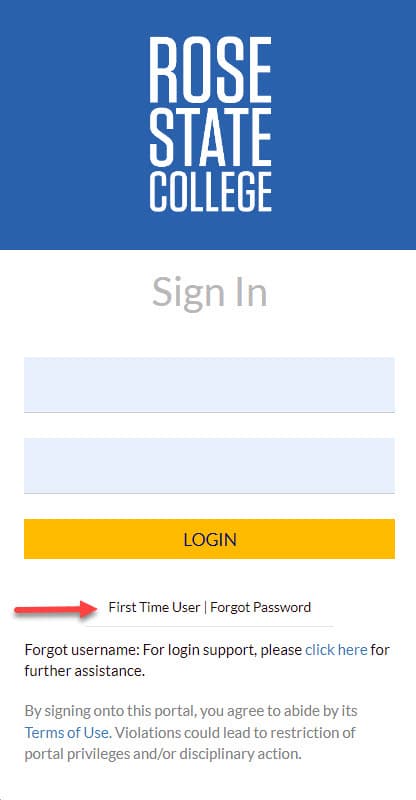
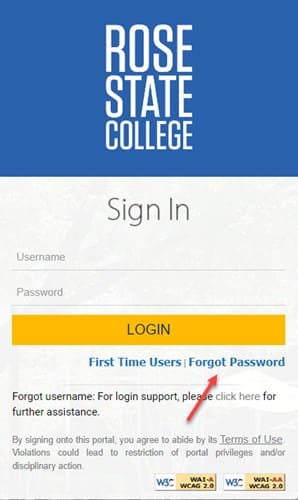
New students must follow FIRST TIME USER steps on the SSO login page.
Make sure to set up account recovery.
SSO Password Requirements
Your password MUST be a minimum of 14 and a maximum of 28 characters in length.
Your new Password should be a passphrase. A passphrase is a sentence-like string of words that is longer than a traditional password, easy to remember and difficult to crack.
Must contain each of the following characteristics:
- Upper case A-Z
- Lower Case a-z
- Utilize numbers 0 through 9
- Non-Alphabetic characters (e.g. ! $ # & % *)
Password CANNOT contain all or part of your username, First Name, Last Name, or a US Zip Code.
You cannot choose a password that you have used 5 previous times. HINT: Words found in the dictionary may not be accepted by the system. You may deliberately misspell a word if the system rejects your password.
SSO Information
For additional information about the SSO, please click on the following link: https://www.rose.edu/sso
This includes information about the SSO portal and how to use it.
If you still need further assistance, please contact our office at:
- (405) 733-7356
- Office Hours: Mon-Fri 8AM - 5PM
Password Reset
You will be able to quickly change your logon password (in case you forget it or it expires) by using the SSO portal without having to contact the campus Information Technology Services department directly. You will only need to remember one password for accessing key College services.
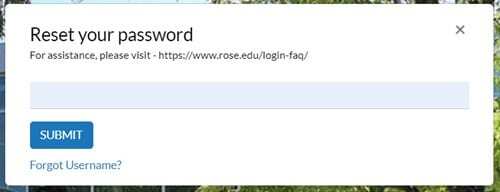
The following link will take you to the main landing page so you can sign into the SSO: Click Here. Click the “Forgot Password” link beneath the golden “LOGIN” button.
Enter your username and hit submit.