
Access Student Accounts
Single Sign-On (SSO)
- CANVAS (also check out the iOS/Android app – Canvas Student)
- Access course syllabus, assignment schedule, and Zoom component
- Submit assignments, participate in discussions, take quizzes and exams
- Student OASIS (Campus Management System)
- Modify and view class schedule, pay your current tuition balance
- Check and accept your Financial Aid
- Online Databases (Databases used for research purposes)
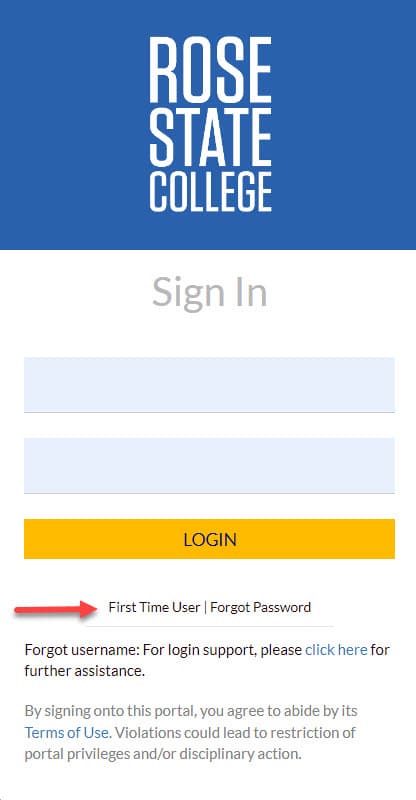
To complete these steps, you will need your Raider User ID along with personal details that were recorded on your application.
Be sure to set up your initial challenge questions, and enter a secondary email address and mobile phone number as soon as possible. Those will be critical to verify your identity in the future.
IMPORTANT NOTE:
After being admitted to Rose State College, you will receive your network ID via email from Admissions. The format of Student Network IDs is the first letter of your first name capitalized and the first letter of your last name capitalized combined with your student ID number. (Example: Jill Smith is JS01234567).
New students must follow FIRST TIME USER steps on the SSO login page.
Make sure to set up account recovery.
SSO Password Requirements
Your password MUST be a minimum of 14 and a maximum of 28 characters in length.
Your new Password should be a passphrase.
A passphrase is a sentence-like string of words that is longer than a traditional password, easy to remember and difficult to crack.
Must contain each of the following characteristics:
- Upper case A-Z
- Lower Case a-z
- Utilize numbers 0 through 9
- Non-Alphabetic characters (e.g. ! $ # & % *)
Password cannot contain all or part of your username, First Name, Last Name, or a US Zip Code.
You cannot choose a password that you have used 5 previous times.
HINT: Words found in the dictionary may not be accepted by the system. You may deliberately misspell a word if the system rejects your password.
SSO Information
For additional information about the SSO, please click on the following link: https://www.rose.edu/sso
This includes information about the SSO portal and how to use it.
For further assistance, contact: (405) 733-7356
Office Hours: Monday – Friday | 8 AM – 5 PM
Password Reset
You will be able to quickly change your logon password (in case you forget it or it expires) by using the SSO portal without having to contact the campus Information Technology Services department directly. You will only need to remember one password for accessing key College services.
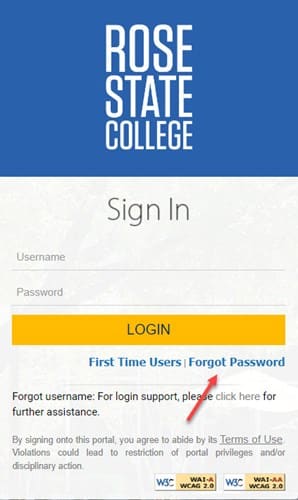
The following link will take you to the main landing page so you can sign into the SSO: Click Here. Click the “Forgot Password” link beneath the golden “LOGIN” button.
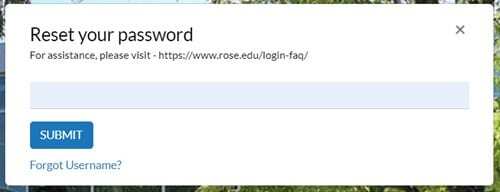
Enter your username and hit submit.
Multifactor Authentication (MFA) Configuration Instructions
Raider Email Account
Raider Email Accout
New Student Checklist
Though each student will proceed at a different pace, the steps below should be followed in order as applicable.
- Apply to the College. See the How to Apply page for more information.
- After being admitted to Rose State College, you will receive your Student Network ID via the personal email address recorded on the application for admission. The format of the Student Network ID is the first letter of your first name capitalized and the first letter of your last name capitalized combined with your Student ID number. (Example: Jill Smith would be JS01234567).
- Login to the Single Sign-On (SSO) as a First-Time User. You will need your Student Network ID along with personal details that were recorded on your application. Be sure to set up your initial challenge questions and enter a secondary email address and mobile phone number as soon as possible. Those will be critical to verify your identity if you have trouble logging in. See Access to Student Accounts for more information. Note: Your Microsoft 365 and Canvas accounts will not be created until a day after you enroll in at least one class.
- Determine your course placement
- Proceed directly to Meet with an Academic Advisor and enroll if:
You have an unweighted high school GPA of 3.6 or above and completed Algebra II with a C or above
– OR – SAT scores of 510 or above in Math and Evidence-Based Reading & Writing (ERW)
– OR – ACT subscores of 19 or above in Writing, Reading, and Math
**High School GPA and/or SATIACT scores must be within the last 3 years** - If neither of the above apply to you:
- Prepare for the Accuplacer
To ensure accurate placement, be sure to utilize our FREE study materials. Our research has shown that students who study for the Accuplacer require fewer preparatory courses and can complete their degree in fewer semesters.
Study Materials URL: www.longsdalepub.com/accuplacer
School Number: 61770
School Key: raider - Take the Accuplacer Tests
Go to the Placement Testing Center – Student Services Building, room 204
The Accuplacer is composed of three test sections: Reading, Writing, and Math
The first attempt at the Accuplacer is free of charge for all three sections. All future attempts will incur a $7.00 charge per section or $21.00 for all three sections.
Testing is offered on a walk-in or appointment basis. For appointments, please call: 405-733-7320
- Prepare for the Accuplacer
- Proceed directly to Meet with an Academic Advisor and enroll if:
- Meet with an Academic Advisor and enroll.
- New Students and Undecided majors will enroll in the Student Services Building, room 100.
- Students with prior college credit will enroll with a Division advisor. Your advisor will enroll you in your courses. See the Advisor map for detailed listings of each division and major.
- Within one day after enrolling for the first time, your Microsoft 365 account will be created which will give you access to your student email account and the other Microsoft 365 apps. In addition, your Canvas account will be created which will give you access to the online course shells for each of your classes.
- Get your Student ID & Parking Decal
- Student ID – Advisement Center, SSB 100, 405-733-7408
Bring photo ID and class schedule - Parking Decal – Advisement Center, SSB 100, 405-733-7408
Bring photo ID, schedule, and vehicle information (make, model, tag number)
- Student ID – Advisement Center, SSB 100, 405-733-7408
- Apply for Financial Aid and Scholarships Apply at studentaid.gov. Use Rose State College code: 009185. Check the status of your RSC financial aid application on your OASIS account.
- Navigate to Self Service > My Information I Check Message Center, To-Do list, and holds.
- For questions, please visit the Financial Aid office in the Student Services Building, room 200 or call 405-733-7424 Scholarship information can be found at rose.edu/scholarships
- Buy your Books
Students can buy their books in one of two ways:- On-campus in the New Student Union (Building 14 on Campus Map)
- Online at bkstr.com/rosestatestore
Use your Student ID number to generate your book list and have them shipped!
Pell Grant recipients may have the option to charge their books to their bursar account.
For details, please contact the RSC Financial Aid Office or visit the RSC Financial Aid webpage.
Through the Rose State Single Sign-on (SSO) account, students will have access to:
- OASIS (also referred to as PeopleSoft)
- Modify and view class schedule, pay your current tuition balance
- Check and accept your Financial Aid
- CANVAS (also check out the iOS/Android app – Canvas Student)
- Access course syllabus, assignment schedule, and Zoom component
- Submit assignments, participate in discussions, take quizzes and exams
- MICROSOFT 365 including STUDENT EMAIL: The email address is typically in the format [email protected]. Sometimes a hyphen (-) and a number is appended after your lastname to eliminate email conflicts. Check your personal details in OASIS to verify your email address.
Please address all login and Microsoft 365 issues to IT Services at 405-733-7356, Monday – Friday, 8:00am to 5:00pm. If you have technical questions regarding Canvas, please see the Canvas for Students page.